Introduction
The Universal Design Online content Inspection Tool (UDOIT) is free and available to faculty members through Canvas. This Tool will scan your course content, generate a report, and provide instructions on how to correct accessibility issues. It is not accessible to, nor visible by students. UDOIT was created by the Center for Distributed Learning at the University of Central Florida for faculty members, to support inclusive and diverse campuses by making courses accessible to all learners. Below you’ll find an overview and suggestions for working with UDOIT. Please note that the detail on accessibility reports can be dense and take some time to navigate; for assistance in working with UDOIT, please contact centerforteaching@bc.edu.
Although UDOIT does not check everything, it does check these common accessibility issues: the use of headings in the page structure, alternative text for images, table headers, color contrast, and video captions.
- While it is not able to check content in external links, it can check PDFs and Word docs uploaded into Canvas.
- It will check the Instructions area of Classic Quizzes, but is not able to check New Quizzes.
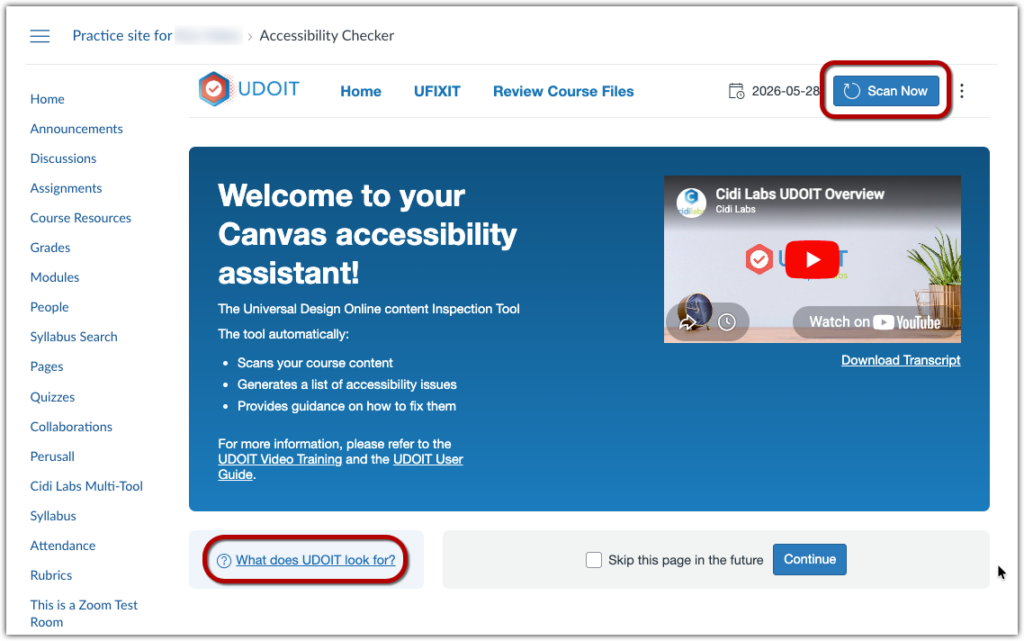
You can see a complete list of what UDOIT scans and how it presents findings on UDOIT’s “What Does UDOIT Look For?” page.
In Advance
- Review Accessible Canvas Design
- Consider authoring content directly within a Canvas page instead of linking to an outside resource
- Add UDOIT to your Canvas course.
- Select “Settings” from the course navigation sidebar in your Canvas course.
- Click the “Navigation” tab at the top of the page.
- Locate the UDOIT link from the list provided and click the three vertical lines to the right of the link
- Click the “+ Enable” button.
- Scroll down to the bottom of the page and select “Save.” UDOIT is now enabled in your Canvas course.
Review the accessibility of your Canvas course with UDOIT
Click on “Accessibility Checker” located in the Canvas course menu on the left side of the page.
- If this is your first time using the Accessibility Checker or you have not used it in a while, you may be prompted to connect/reconnect UDOIT with Canvas by clicking the blue “Continue” button.
- The Accessibility Checker landing page you will reach includes a link to “What Does UDOIT Look For?,” mentioned above, as well as video and other resources for learning more about UDOIT. Please note that UDOIT appears slightly differently in the videos than it will as you’re working with it, as BC uses the Classic version of UDOIT rather than the version shown.
To get started with an accessibility scan, click the blue “Scan Now” button and wait a few moments for the scan to complete.
A report of errors and suggestions is generated and split into two categories: “Content” and “Files.”
- The “Content” [1] category contains errors to material created in Canvas and organizes the errors into two lists, one focusing on the “Most Common Errors” and beneath that a list of the “Most Common Suggestions.”
- “Most Common Errors” are issues that the Accessibility Checker identified with high confidence as serious errors in accessibility. While “Most Common Suggestions” are things the Accessibility Checker requires your attention to determine if they are an issue or not.
- The “Files” [2] category focuses on errors found in uploaded media which are then sorted into a single list, “Most Common File Issues.”
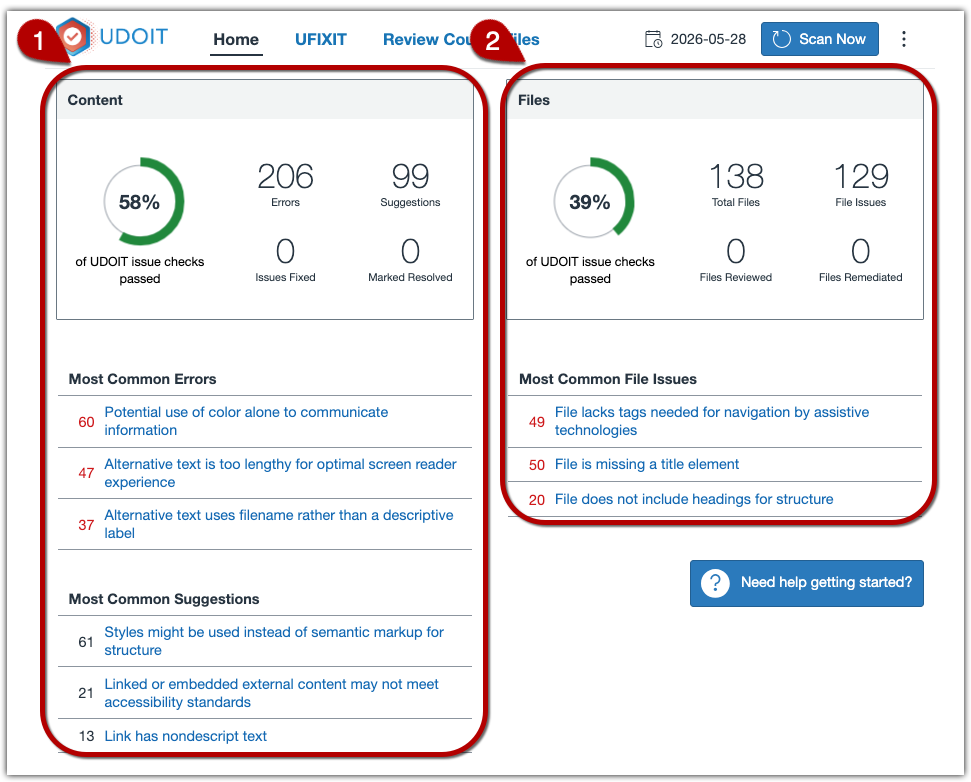
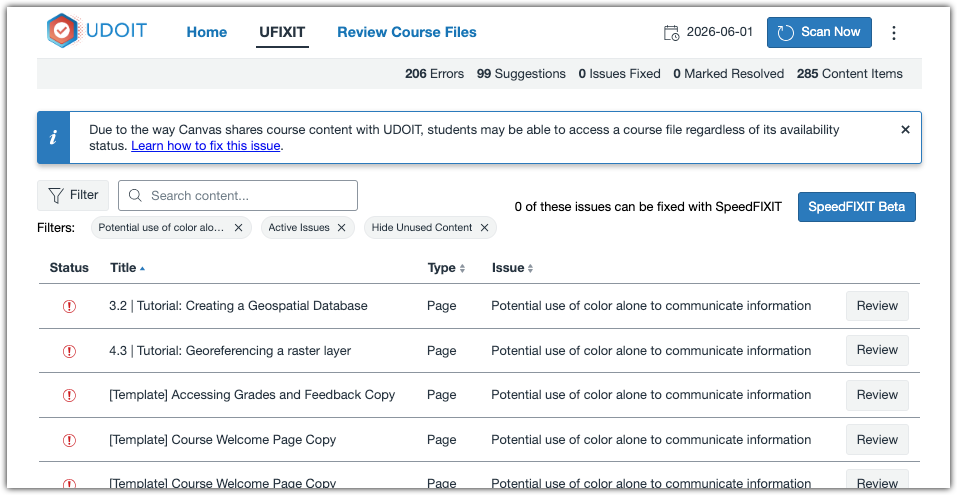
Clicking on one of the items in the “Most Common Errors,” “Most Common Suggestions,” or “Most Common File Issues” sections will open a list displaying only those specific errors or issues. If you wish to view all the content errors or file issues in a single undifferentiated list, click the “UFIXIT” or “Review Course Files” link at the top of the homepage.

In the example below, the UFIXIT list shows only content errors categorized as “Potential use of color alone to communicate information”.
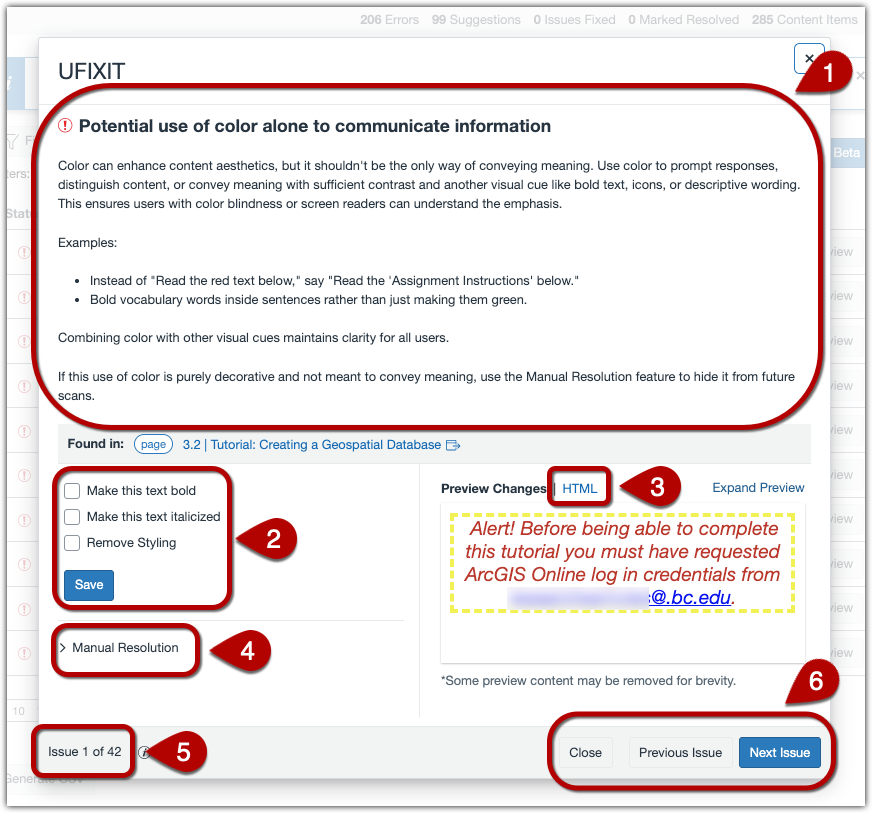
Clicking on any item in the list will open a panel that allows you to begin correcting the errors. The UFIXIT panel explains the error [1], then presents three different options for fixing the error: alter the text via check boxes [2], by directly editing the HTML [3], or by manually going to the location of the area in Canvas and manually changing it there [4]. Please note, not all these options are available for all errors and different methods are presented for different kinds of errors. Additionally, the panel presents you with the number of errors in the current list [5], and allows you to navigate through the list within the panel [6].
Please note, clicking on the “Most Common File Issues” (see above) will display a similar list, and clicking on one of the items on the list will open a similar panel. Much like how different content errors will display different options to fix it, different file errors will likewise present you with different options and suggestions for fixing it. However, unlike the content errors, the file issues will often need to be resolved outside of the UFIXIT interface and may involve altering the file in some way, such as adding file tags to the file information or adding headers within a text file. The file panel will present a list of the issues with the file [1], possible fixes for the issue that you will need to take yourself outside of UFIXIT [2], the ability to generate alternate file formats that you can make available to students [3], and the navigation section [4].Sample Page
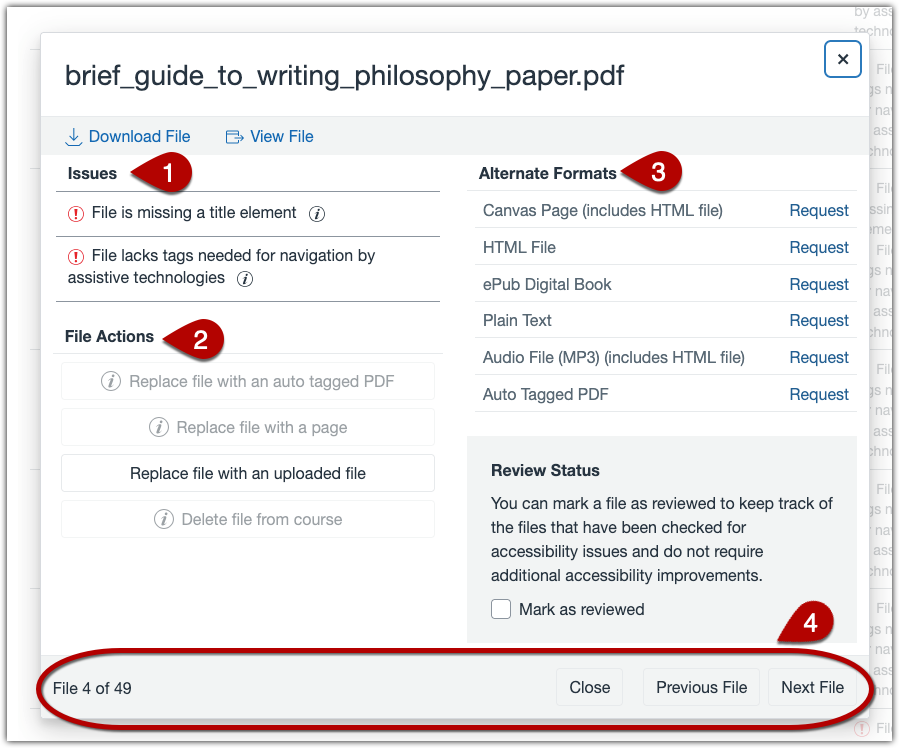
If you choose to generate alternative versions of files, you’ll be able to find them either in Pages (html) or Files, listed alphabetically by name, so you can create links for students to access them.
More Options and Information
On the Accessibility Checker landing page in your Canvas site, the Ellipsis menu in the upper right corner will present other options, including a Report of prior accessibility reviews and fixes. Read more about UDOIT Reports.
For more information about the Tool, see the UDOIT FAQs. For assistance in using it or interpreting results, or with other questions related to accessibility in Canvas, please contact centerforteaching@bc.edu.