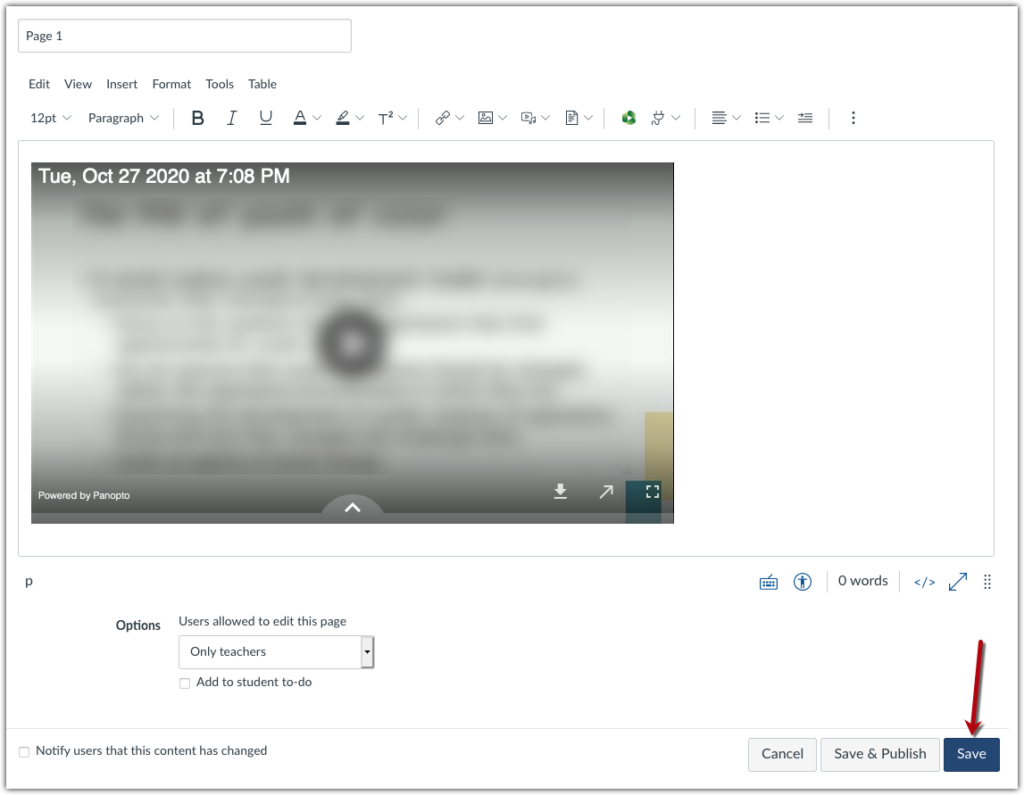
Although Panopto recordings are published into the “Panopto Recordings” tab in Canvas, there may be occasions when you want to add Panopto lectures directly to a Canvas Page, Module, or Discussion Board prompt. This tutorial explains how to add a Panopto recording to a Page and anywhere else the Canvas rich content editor appears.
Please note that if you want to share a Panopto recording made for a different class, inserting it into the Canvas rich content editor using the External Tool feature is the best way to ensure that students in your current class can access the video. Using the Panopto direct link or embed HTML code does not ensure that all students will have access to this video. If you’re sharing a lecture capture recording, also see the Classroom Recording policies in BC’s Faculty Handbook for guidance on getting appropriate permissions from the group originally recorded, and feel free to contact centerforteaching@bc.edu with any questions or concerns.
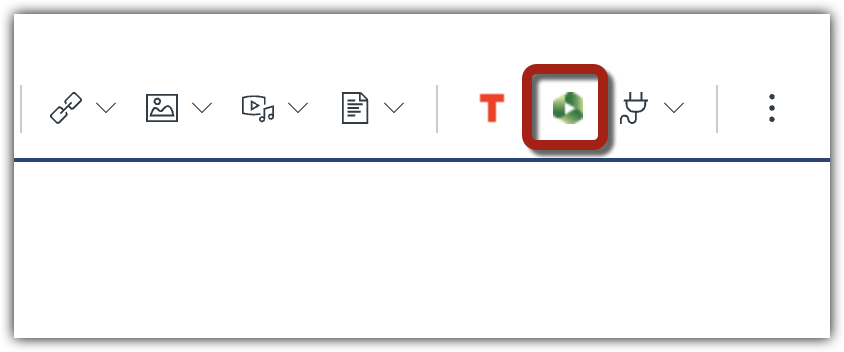
Begin by navigating to your Canvas page, and selecting the rich content editor. In this example we are embedding a Panopto video into a Page. Click on the green Panopto icon from the toolbar.
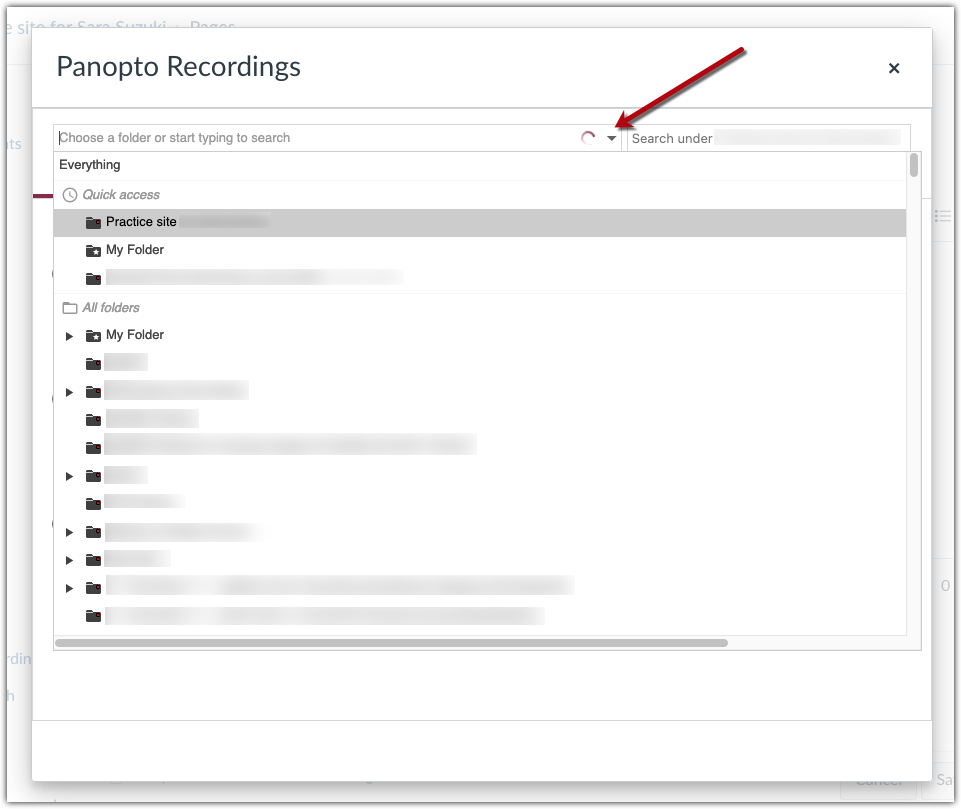
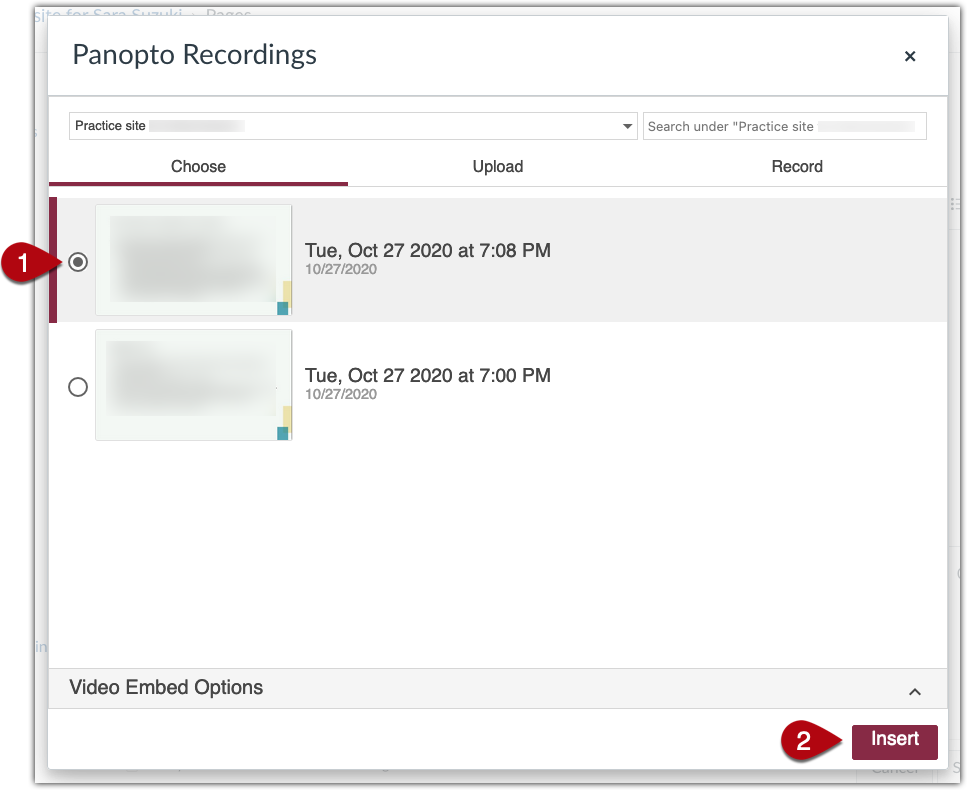
In the Panopto Recordings box that appears, navigate to your course folder, personal folder (“My Folder”), or wherever the video you want to add is stored.
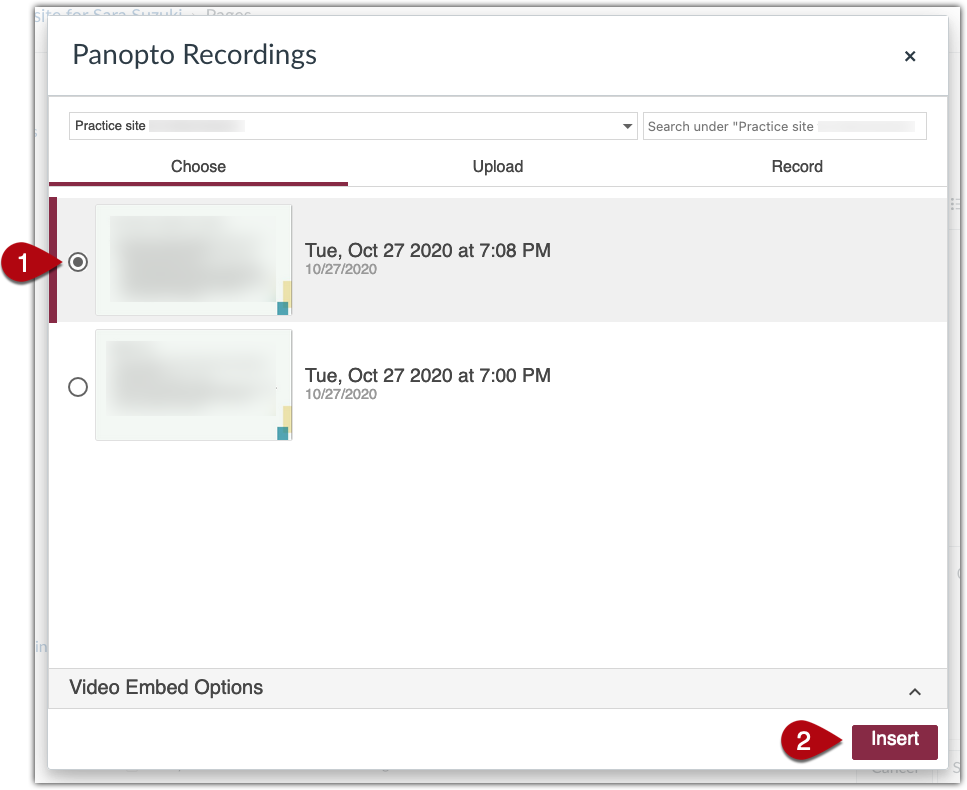
Select the video you would like to add to your page and click “Insert.”
 After the video loads in the rich content editor, “Save” the page.