Rubrics allow instructors to communicate criteria for grading assignments. They promote transparency and greater attentiveness to criteria as students can refer to them while completing their work. Rubrics can also help students decide where to focus their efforts by assigning different point values to different criteria. They also encourage consistency in grading, and offer convenience as instructors only need to enter general information once and can limit their typing on individual submissions to particular concerns.
Please note: In December, 2025 BC implemented Enhanced Rubrics, which give instructors more flexibility in structuring criteria and applying them in grading. If you’ve been using Rubrics up to now, you might want to review the documentation from Canvas on creating Enhanced Rubrics and working with them in Speedgrader.
Rubrics can explain qualities that characterize performance at difference levels, as in this general example for essay assignments, which shows three standards and their point values as well as field under each one to enter comments:
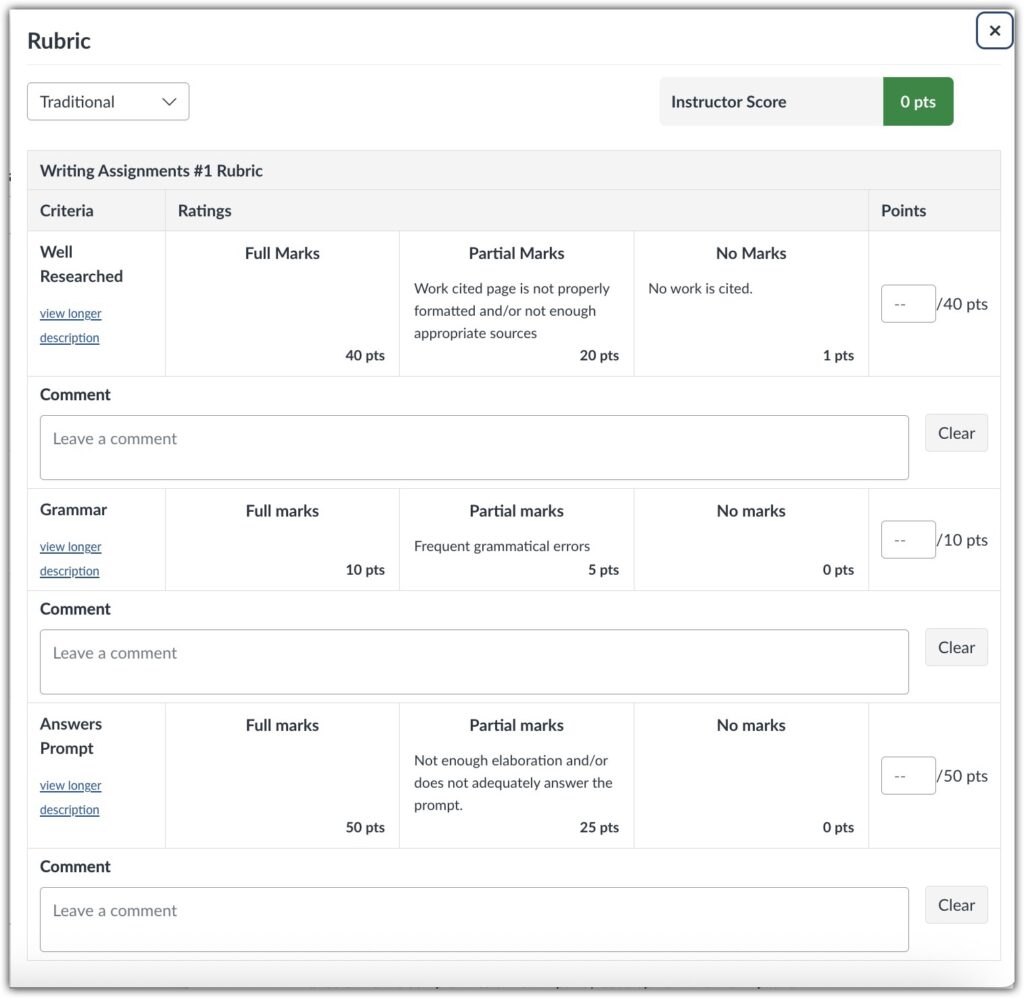
Adapted from Columbia University Center for Teaching & Learning, Incorporating Rubrics into Your Feedback and Grading Practices, https://ctl.columbia.edu/resources-and-technology/resources/incorporating-rubrics/
As the following example from a related assignment shows, set standards can be omitted to allow space for free commenting:
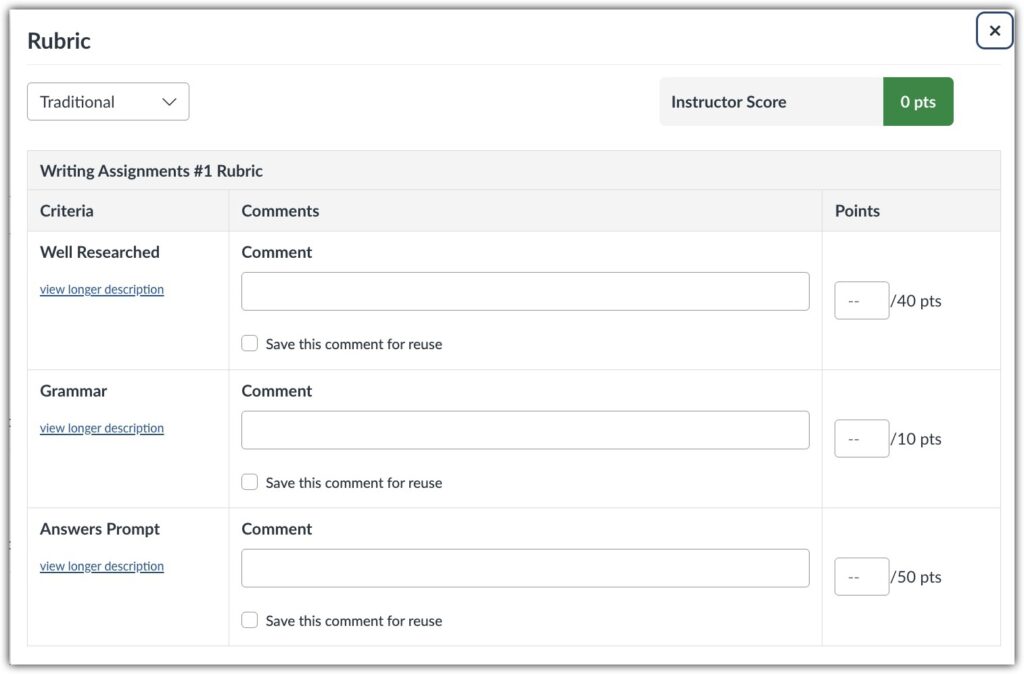
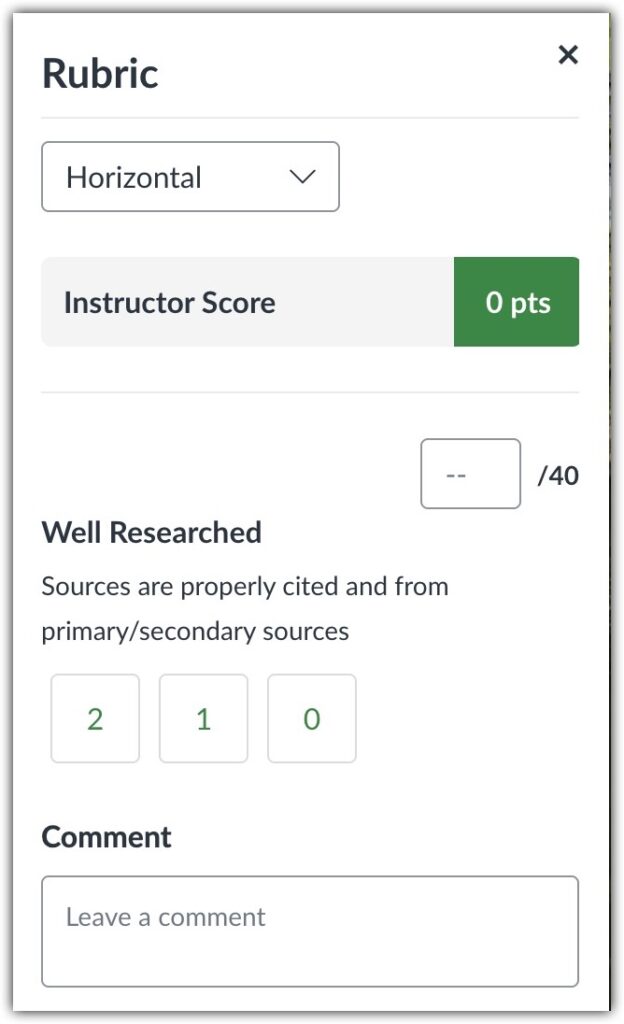
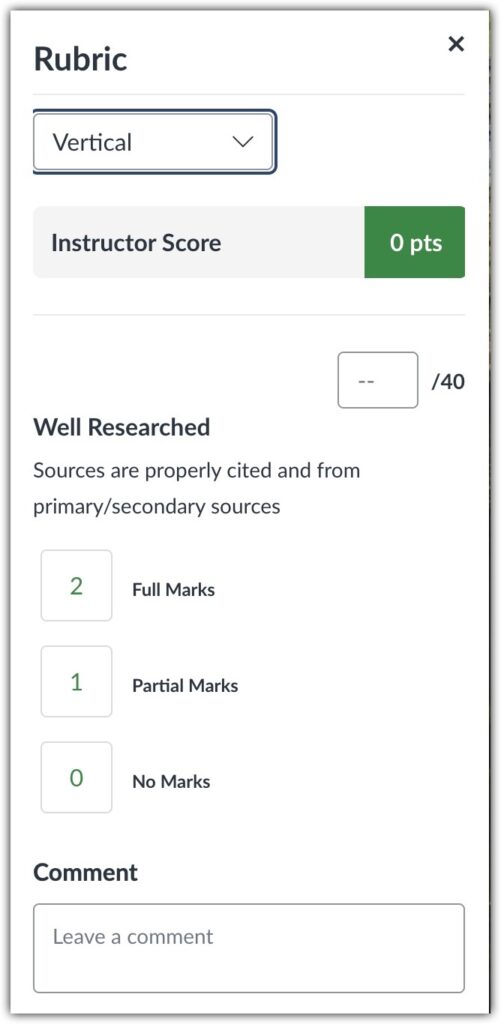
While the default view of Enhanced rubrics is a table like the ones shown above, they can be previewed and used in Speedgrader in two other formats:
Horizontal View, with rows of buttons to streamline selection of standards
Vertical View, with columns of buttons to streamline selection of standards
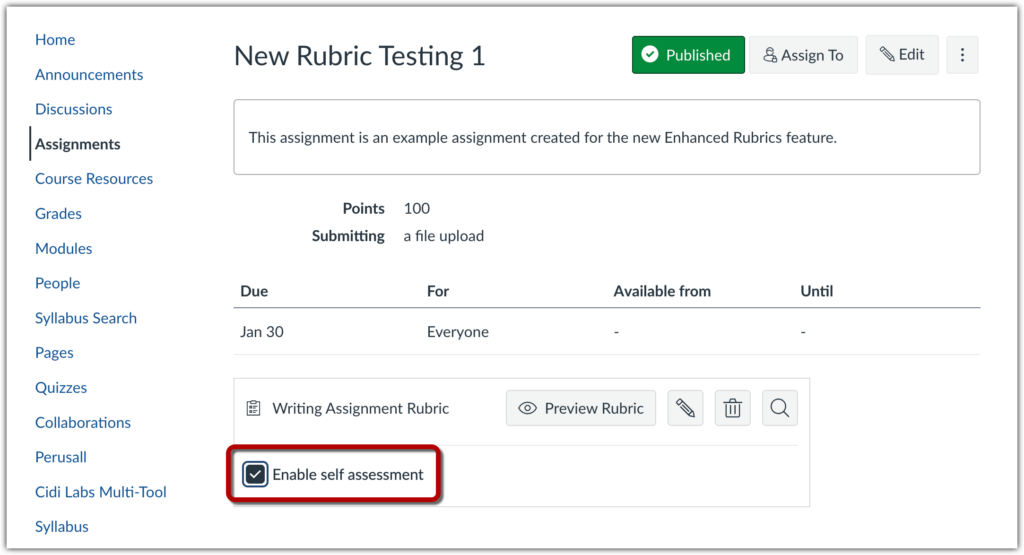
Rubrics are added to an Assignment after it is set up, and can then be viewed along with the Assignment or as part of Speedgrader when reviewing student work. Once a rubric is added to an Assignment, it can be made available to students directly to complete a self-assessment.
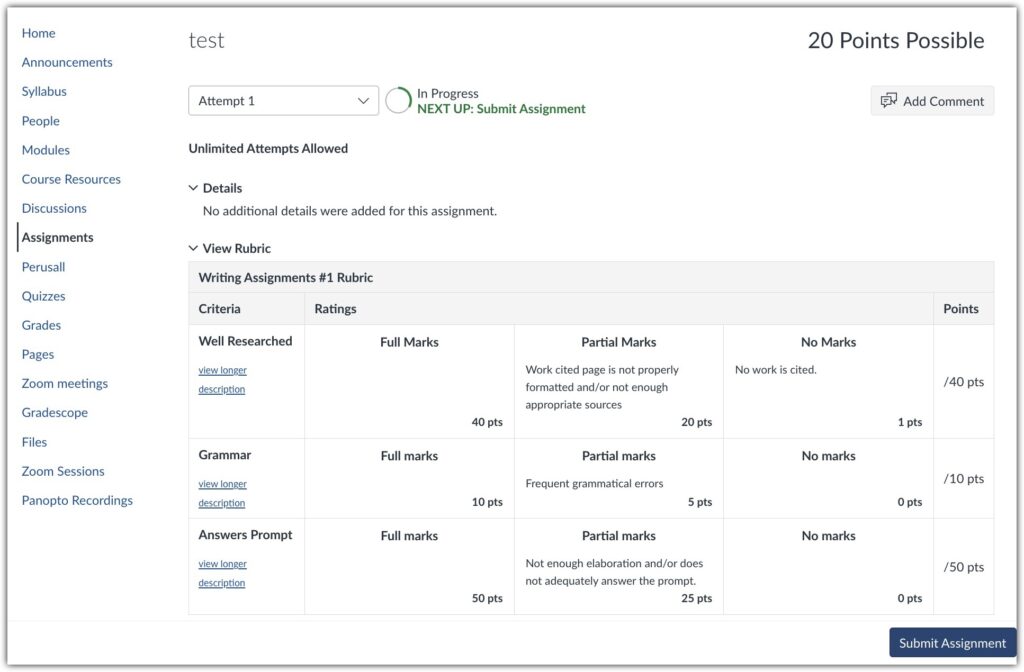
Student view
Students see an Enhanced rubric on the same page where they submit the assignment it refers to. The rubrics can be expanded beneath the assignment details, so it appears above the area where students submit their work.
Enhanced Rubrics allow:
- The choice in Assignments about whether or not to use the rubric in grading (it can supply the grade in Speedgrader, or calculate a score but leave it to you to enter the grade directly, or omit scoring and simply provide feedback).
- The option in the Gradebook to download a CSV where rubrics for all students can be edited together, then re-uploaded and returned to the individual students
- The choice to create a rubric when setting up an individual assignment, or to work in the Rubrics area and apply rubrics created and edited there to multiple assignments.
Best practices
- To help students make the most of rubrics, mention them explicitly in instructions for the assignment.
- To help students track their own progress, use a rubric to identify a particular concern and then refer to it again when another assignment is administered with the same rubric.
- Provide examples along with the rubric so students can see what constitutes performance at each level.
- Use rubrics for Peer Review to guide students in commenting on each other’s work.
- Have students use a rubric to assess their own work (consider sharing documentation from Canvas on how to complete a self-assessment)
For further information, see these guides from Instructure:
- How do I manage rubrics in a course using Enhanced Rubrics?
- How do I add a rubric in a course using Enhanced Rubrics?
- How do I add a rubric to an assignment using Rubric Enhancements?
- How do I use a rubric to grade submissions in Speedgrader using Enhanced Rubrics?
- How do I download rubric assessments using Enhanced Rubrics?