Migrating Classic Quizzes to the New Quizzes format is possible, but with the following limitations:
- Within the same Canvas site, migration can only be done on a quiz-by-quiz basis. Bulk migration—or migrating multiple quizzes at once—is under testing in beta.
- When importing content from one course site to another, you can migrate all Quizzes from the Classic to the New format. Read more about importing content between Canvas sites.
- Question Banks associated with Classic Quizzes come over to Item banks, the format used with New Quizzes, as Quizzes are migrated. Read more about using Item Banks in New Quizzes. If you use Question Groups, note that when a Classic Quiz is migrated into the New Quizzes engine, Question Groups import as Item Bank questions. The quiz displays the group and the number of questions that are to be pulled from the group.
Feel free to reach out to centerforteaching@bc.edu with any questions about migration.
How to migrate a Classic Quiz to a New Quiz within a Canvas site
- Click the Quizzes link in Course Navigation [1], then click the Options icon [⋮] on the quiz you want to migrate. Then click the Migrate option [2].
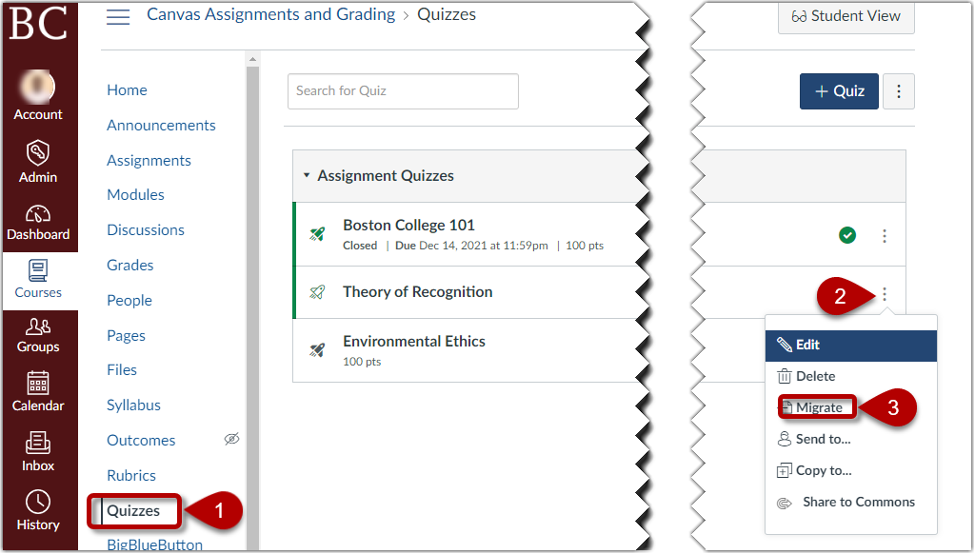
Note: If you cannot view the Migrate option, take the above steps to enable New Quizzes for your course or send an email to canvas@bc.edu for assistance. - A Column will appear below the quiz window with a loading icon and texts indicating that migration is in progress:

Note: The duration of this display will depend on the volume being migrated and your internet speed. You may get an email notification when the migration is complete. - Once migrated, the new quiz displays a solid New Quiz icon [2]. The original quiz retains the line-drawn Classic Quiz icon [1].
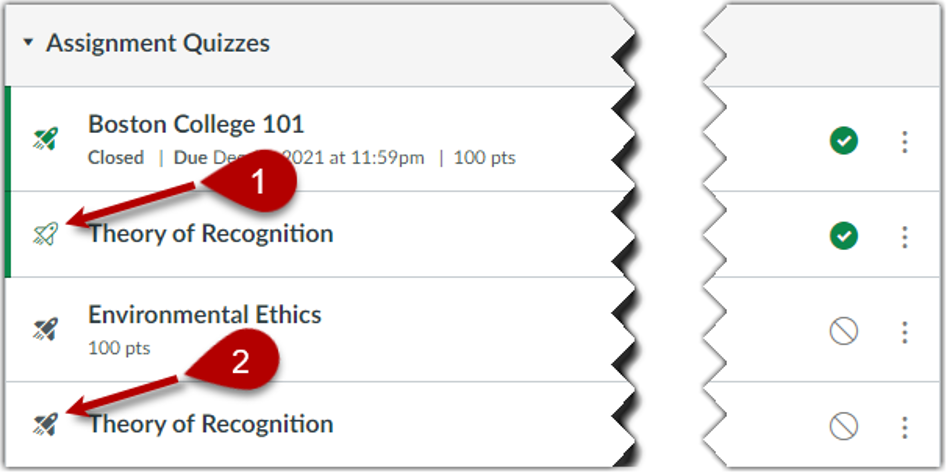
Note: By default, migrated quizzes are unpublished.
Post-Migration Checklist
- Review all questions and settings in New Quizzes, opening all the options to make sure their status reflects your intentions.
- Make necessary edits to an assessment’s settings and content.
- Place the New Quizzes in their proper assignment groups/modules, if using.
- Publish the New Quizzes after making necessary edits and placement.
- Remove the migrated Classic Quiz from the Canvas shell to avoid confusion.
- Preview the New Quiz in Student View to observe what your students can see.