• Resources Home
  • Technologies
  • Strategies
  • Course Design
  • Resources Home
  • Technologies
  • Strategies
  • Course Design

Canvas

home/Resources/Canvas
Expand All Collapse All
  • Canvas
    • Access Canvas
    • Import Content into Your Canvas Course
    • Upload Your Syllabus
    • Share Your Syllabus
    • Review the Course-Launch Checklist
    • Publish Your Canvas Course
    • Understanding Your Canvas Courses Menu
  • Get Started In Canvas
    • Basic Computer Specifications for Canvas
    • Canvas-Supported Browsers
    • Customize User Display Settings
    • Customize Your Notifications
    • Your Canvas Dashboard
    • Customize "My Courses"
    • Get Started With The Calendar
    • Canvas on a Mobile Device
    • Link Canvas Courses
  • Design Your Course
    • Options To Organize Content
    • Set Up A Homepage
    • Import Content Into Your Canvas Course
      • Remove announcements when copying a Canvas site
    • Course-level Settings
    • Modify Your Course Menu
    • Get Started with the Rich Content Editor
    • Get Started With Modules
    • Get Started With Pages
    • Get Started With Files
    • Student View
    • Share Your Syllabus
    • Library Content
    • Add Media In Canvas
    • Canvas Commons
  • Assignments and Grades
    • Get Started With Assignments
    • Get Started with Quizzes
      • Building a Quiz and Grading a Quiz
      • Quiz Options for Managing Accommodations & Supporting Academic Integrity
    • Get Started with Google Assignments
      • Create a Google Assignment
        • Get Started with the Google Originality Checker
        • Compare Google Grader and Canvas SpeedGrader
        • Compare Google Rubrics and Canvas Rubrics
    • Getting Started with New Quizzes
      • Migrating Classic Quizzes to New Quizzes
      • Accessibility & Accommodations in New Quizzes
      • New Quizzes Support for Academic Integrity
      • Grading New Quizzes
    • CFLC Proctored Exams
    • Get Started with Respondus LockDown Browser & Monitor
      • Enabling LockDown Browser
      • Enabling Respondus Monitor
      • Student Guide to Respondus LockDown Browser & Monitor 
      • Using Classroom Wifi for Assessments and Activities
    • Get Started with the Gradebook
      • Posting Grades and Feedback
      • Student-Facing Grade Notifications
      • Troubleshooting in the Canvas Gradebook
    • Take Attendance In Canvas
    • Student View Of Grades
    • Get Started with SpeedGrader
      • Addressing Bias in SpeedGrader
    • Grading Schemes
    • Rubrics
    • Peer Review
    • Get Started with Gradescope Bubble Sheet Assessments
    • Canvas Discussions
      • Discussions: Navigating the Interface
      • Discussions: Locating Groups
      • Discussions: Anonymity & Privacy
  • People and Groups
    • Add People To Canvas
    • User Roles + Permissions
    • Get Started With Groups
    • Get Started With Analytics
  • Canvas Guide for Students
    • Changing Your Display Name and Setting Pronouns
    • Syllabus Search Student Guide
    • Using the Immersive Reader
    • Google Assignments Student Guide

Migrating Classic Quizzes to New Quizzes

Updated on June 3, 2026

Migrating Classic Quizzes to the New Quizzes format is possible, but with the following limitations:

  • Within the same Canvas site, migration can only be done on a quiz-by-quiz basis. Bulk migration—or migrating multiple quizzes at once—is under testing in beta.
  • When importing content from one course site to another, you can migrate all Quizzes from the Classic to the New format. Read more about importing content between Canvas sites.
  • Question Banks associated with Classic Quizzes come over to Item banks, the format used with New Quizzes, as Quizzes are migrated. Read more about using Item Banks in New Quizzes. If you use Question Groups, note that when a Classic Quiz is migrated into the New Quizzes engine, Question Groups import as Item Bank questions. The quiz displays the group and the number of questions that are to be pulled from the group.

Read more about comparative pros and cons of Classic and New Quizzes, and points to take into account in selecting which to use. Feel free to reach out to centerforteaching@bc.edu with any questions about migration.

How to migrate a Classic Quiz to a New Quiz within a Canvas site

  1. Click the Quizzes link in Course Navigation [1], then click the Options icon [⋮] on the quiz you want to migrate. Then click the Migrate option [2].
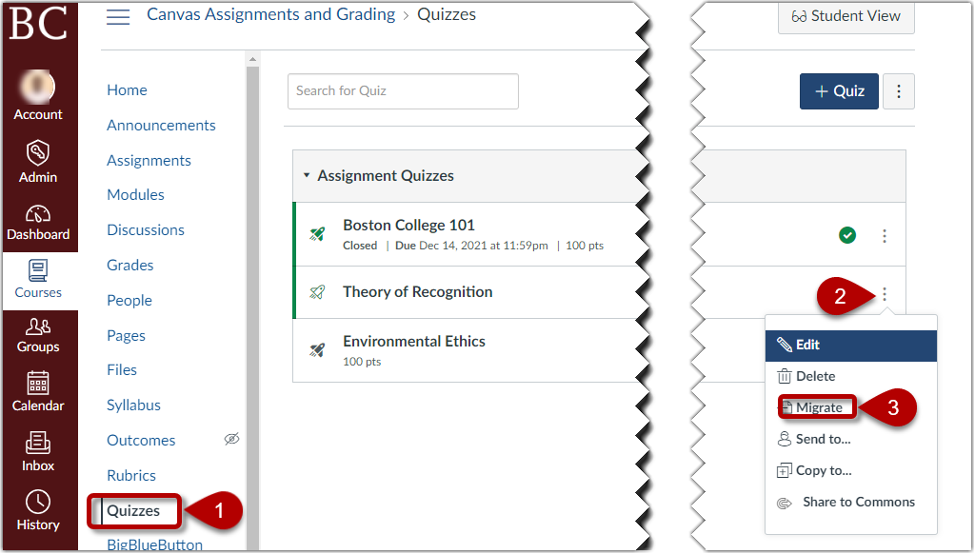
    Note: If you cannot view the Migrate option, take the above steps to enable New Quizzes for your course or send an email to canvas@bc.edu for assistance.
  2. A Column will appear below the quiz window with a loading icon and texts indicating that migration is in progress:

    Note: The duration of this display will depend on the volume being migrated and your internet speed. You may get an email notification when the migration is complete.
  3. Once migrated, the new quiz displays a solid New Quiz icon [2]. The original quiz retains the line-drawn Classic Quiz icon [1].
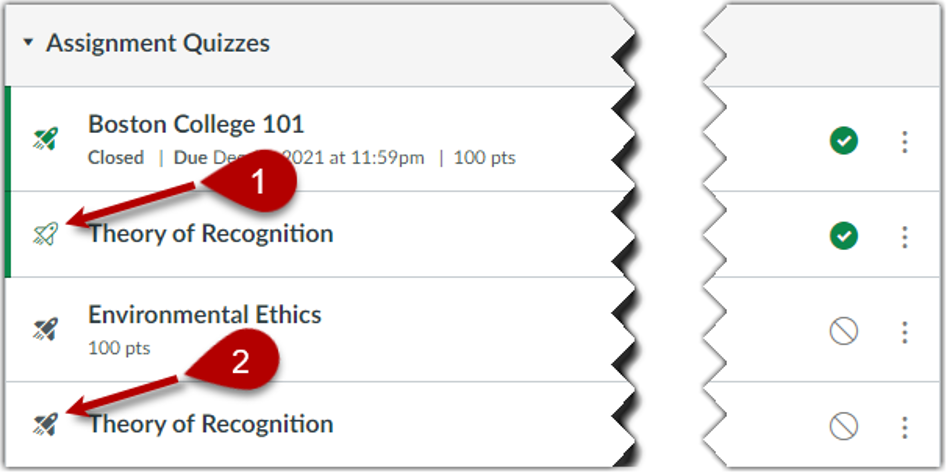
    Note: By default, migrated quizzes are unpublished.

Post-Migration Checklist 

  • Review all questions and settings in New Quizzes, opening all the options to make sure their status reflects your intentions.
  • Make necessary edits to an assessment’s settings and content.
  • Place the New Quizzes in their proper assignment groups/modules, if using.
  • Publish the New Quizzes after making necessary edits and placement.
  • Remove the migrated Classic Quiz from the Canvas shell to avoid confusion.
  • Preview the New Quiz in Student View to observe what your students can see.

Further Resources

  • Get Started with New Quizzes
  • Building a New Quiz
  • Accessibility & Accommodations in New Quizzes 
  • New Quizzes Support for Academic Integrity 
  • Grading New Quizzes 
  • Managing Item Banks in New Quizzes
Previous
Getting Started with New Quizzes
Next
Accessibility & Accommodations in New Quizzes
CTE Logo

Contact Us | CTE Home | Log In