Panopto Capture is a browser-based version of the Panopto recording tool, that allows you to record videos using just your web browser. There is no need to install any software to your computer.
Note: Panopto Capture works best on Chrome and Firefox browsers.
In addition, Panopto Capture allows you to select specific application windows to include in your recording, allowing for more flexibility in how you record videos. You can also record tabs of your browser using Panopto Capture. One useful feature of Panopto Capture is that you can record PowerPoint slides such that the video captures the full slides, but you are able to look at the Presenter View while recording. You can watch this close-captioned video to learn how to use Panopto Capture to record PowerPoint in Presenter View.
Please see instructions below for more information about using Panopto Capture.
- Go to your Canvas site by going to bc.edu/lms. Log in with your BC credentials if prompted.
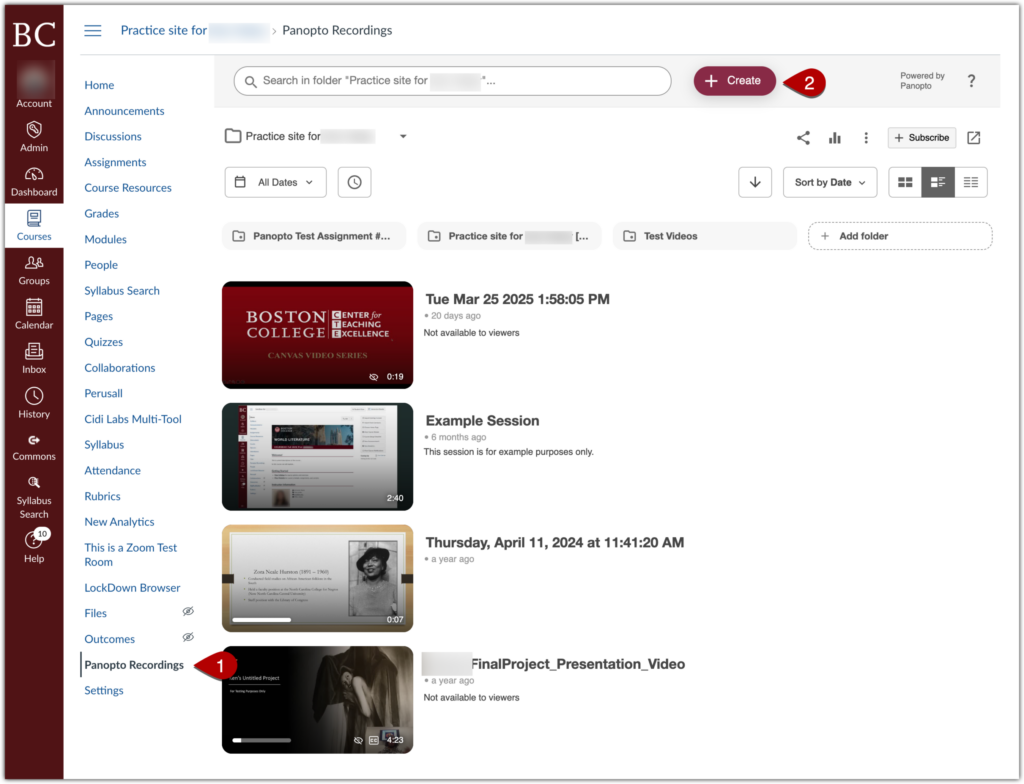
- Click on “Panopto Recordings” [1] then go to “Create” [2] and select “Panopto Capture” [3].
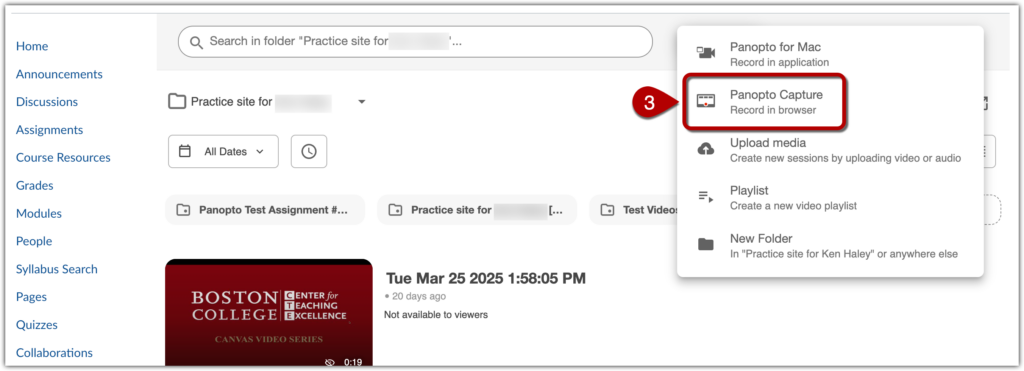
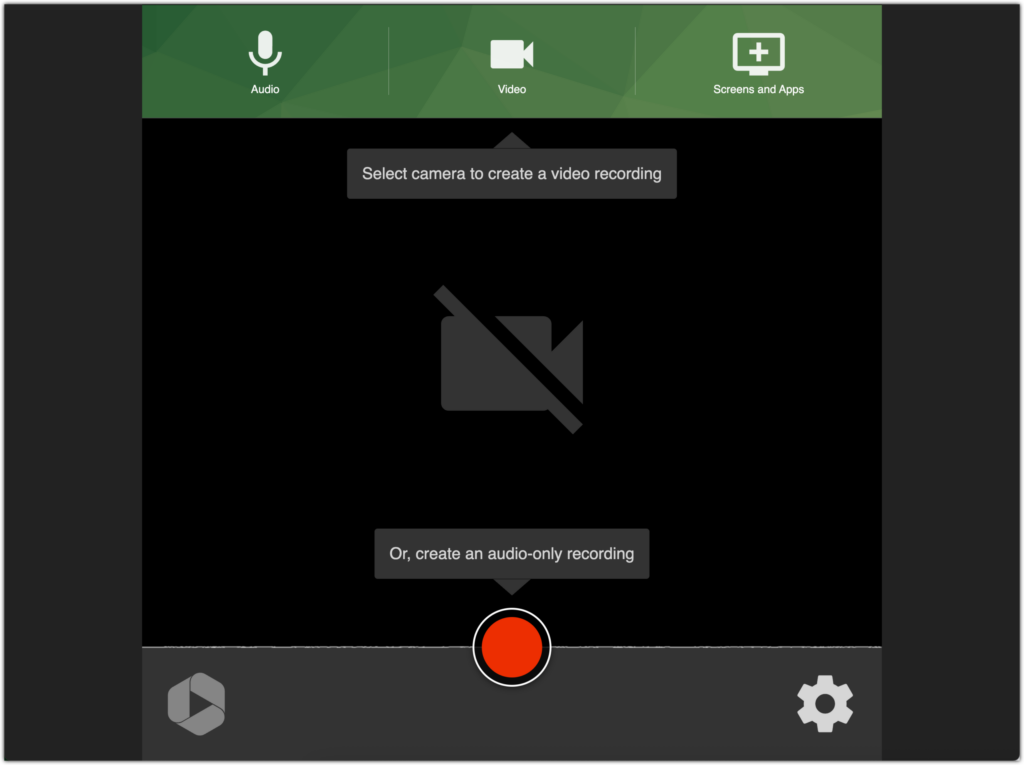
- A new browser tab will open with Panopto Capture.
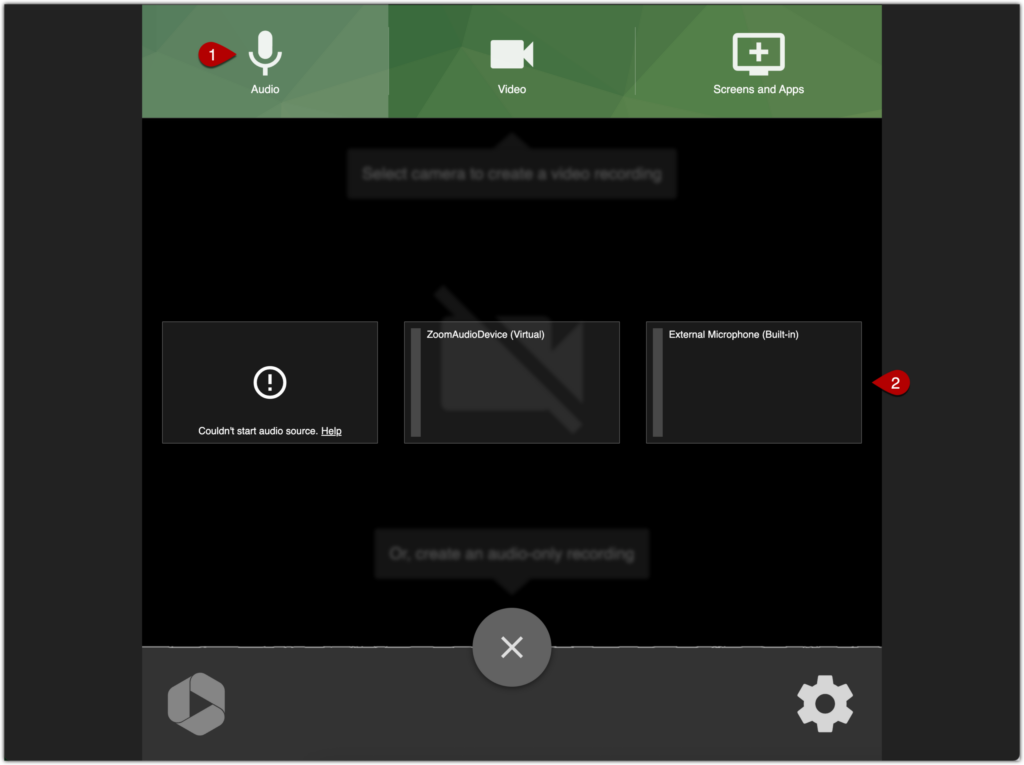
- Select your audio input by clicking on the microphone button [1] and then clicking on the microphone of your choice [2]. Most users will be selecting the microphone that is built-in to their laptop. If you have connected an external microphone to your computer, select the external microphone here.
- Indicate whether you want to record your face using the built-in webcam or not by clicking the video button [1] and then toggling the webcam video on or off [2].
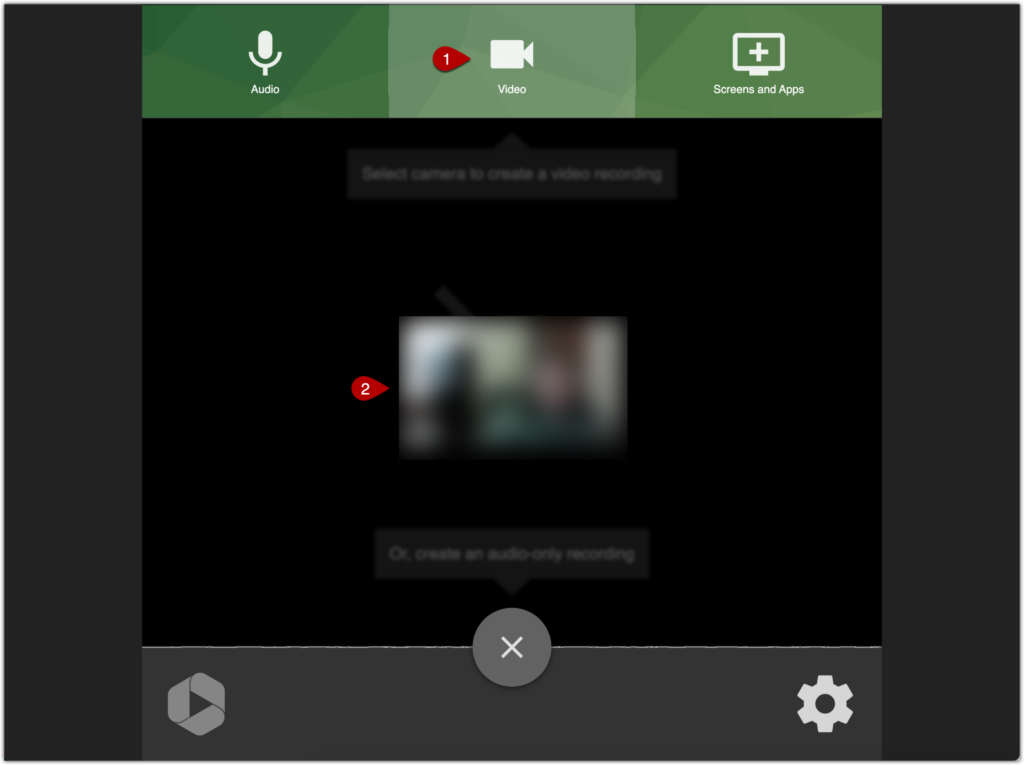
- On your laptop, open any application windows you would like to record. For example, open PowerPoint if you want to record PowerPoint slides in your Panopto recording.
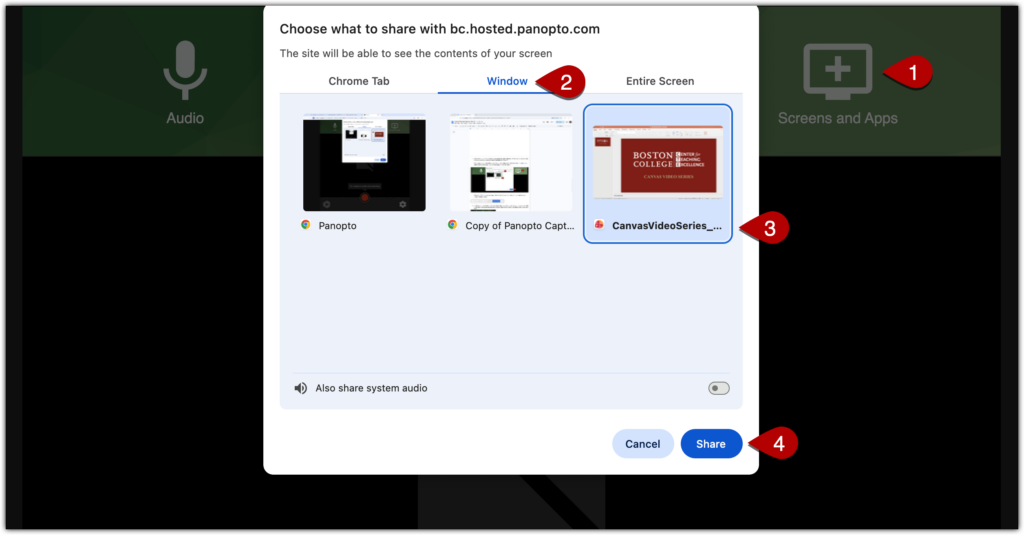
- Next click the “plus” icon on Panopto Capture [1], and then select “Application Window” [2]. Click the application window you want to include in your video [3] and then click “Share” [4].
At this stage, you could also choose to record your entire desktop screen (“Your Entire Screen” option) or you could choose to record a tab in your Chrome browse (“Chrome Tab” option).
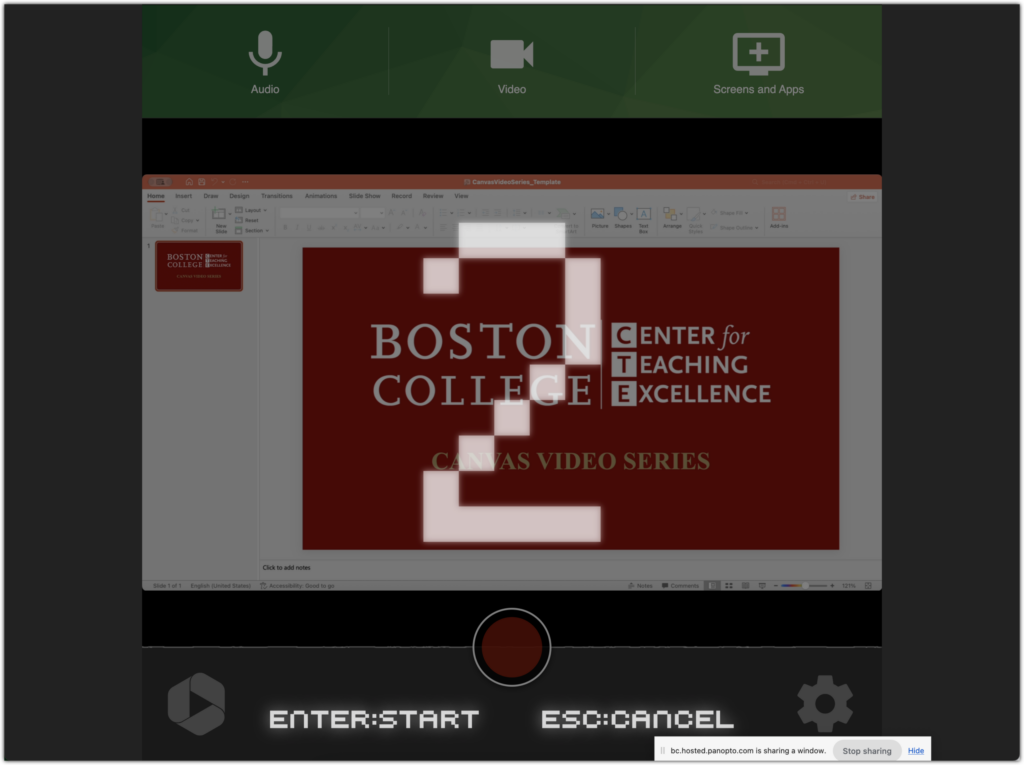
After you hit “Share” you may see a pop-up box indicating that you are currently sharing content from your laptop to Panopto Capture.

- Go back to your browser and click the record button (big red circle) to begin recording your audio, webcam video (if you chose to do so), and your application windows. There will be a 5 second countdown before the recording starts.
- Once you finish recording, press the stop button (big red square). Then, leave the browser window open to let the video upload to your Canvas site. Panopto Capture will let you know when it is safe to close your browser window.
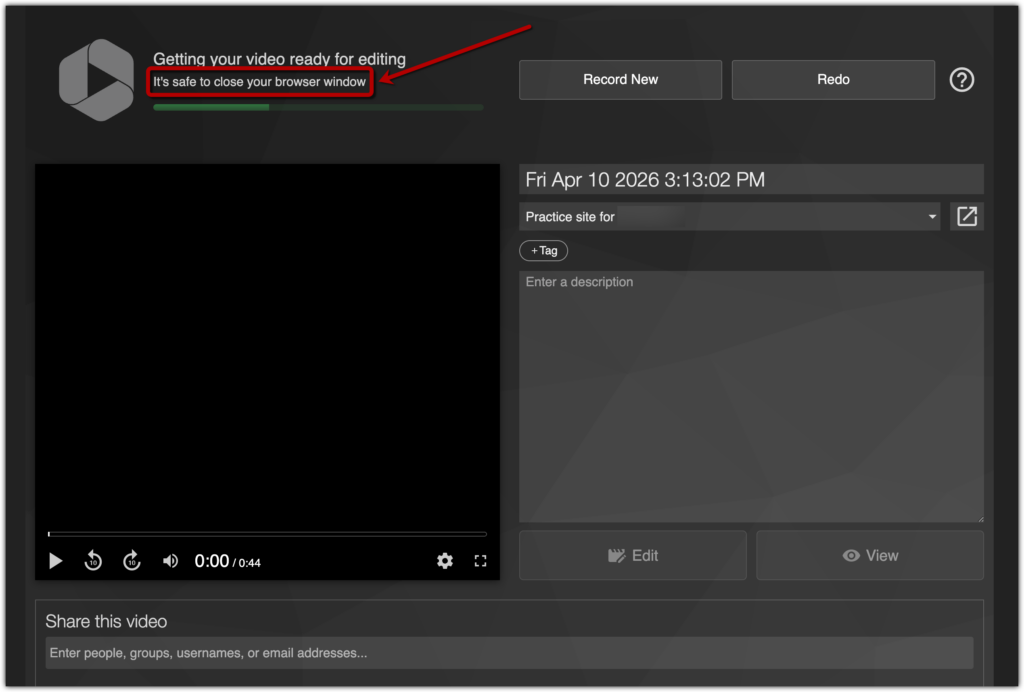
- Close the browser window, and refresh your Canvas site’s Panopto Recordings page. Your new recording will appear in the list of recordings.
For further details on using Panopto capture, and on the various setting options available, please visit the following links: